


QuickBooks is a popular accounting software used by businesses worldwide. It offers various features and integrations to streamline financial management. One such integration is the QuickBooks Web Connector (QBWC), which allows third-party web-based applications to exchange data with QuickBooks Desktop. However, users may encounter errors during the QBWC setup, and one common issue is QBWC Error 1085. In this article, we will delve into the details of QuickBooks Web Connector Error QBWC 1085, its causes, and signs, and provide a comprehensive troubleshooting guide to help resolve the issue.
QuickBooks Web Connector Error QBWC1085 usually occurs when the QuickBooks Web Connector cannot access or write to its log file properly. This error can interrupt data synchronization between QuickBooks Desktop and connected third-party applications. In this guide, we explain the causes of QBWC1085 and provide step-by-step troubleshooting solutions to fix the issue safely.
Table of Contents
Updated for QuickBooks Desktop 2026 and Windows 11 compatibility.
What is QuickBooks Web Connector Error QBWC1085?
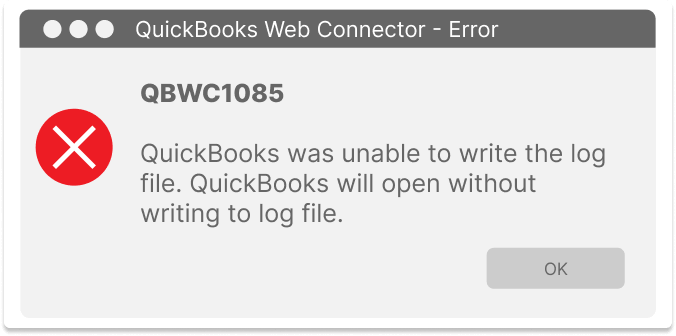
QuickBooks Web Connector Error QBWC1085 is an error that occurs when the Web Connector cannot initialize or access its log file, preventing synchronization between QuickBooks Desktop and connected web applications.
Causes of QBWC Error QBWC 1085
Several factors can trigger QuickBooks Web Connector Error QBWC 1085. Here are some common causes:
- Web Connector file corruption or misconfiguration.
- An outdated or incompatible version of QuickBooks or the Web Connector.
- Conflicts with other programs or applications installed on the system.
- Improper installation or incomplete setup of the QuickBooks Web Connector.
- Firewall or security settings block the Web Connector’s access to the internet.
- Issues with the company file or QuickBooks data.

Signs of QBWC Error QBWC 1085
To identify QuickBooks Web Connector Error QBWC 1085, watch out for the following signs:
- QuickBooks freezes or becomes unresponsive.
- Error message: “QBWC1085: QuickBooks was unable to write to the log file. QBWC1085: There was a problem with the log file. QuickBooks Web Connector will continue without the log file.”
- The Web Connector fails to start or stops abruptly.
- The connected application fails to synchronize data with QuickBooks.

Take Guidance from these methods and fix QuickBooks Web Connector Error QBWC 1085
Method 1: Update QuickBooks and Web Connector
- Launch QuickBooks Desktop.
- Go to the “Help” menu and select “Update QuickBooks.”
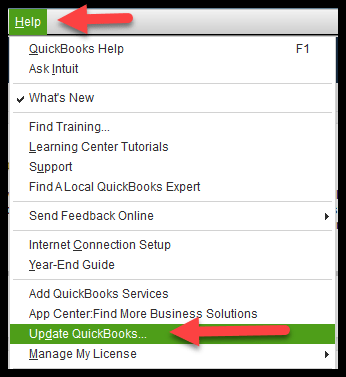
- Click on the “Update Now” tab.
- Checkmark “Reset Update” to remove any previously downloaded updates.
- Click on “Get Updates” to start the download.
- Once the update is complete, close QuickBooks and restart your computer.
- Download and install the latest version of the QuickBooks Web Connector from the official Intuit website.
Method 2: Reconfigure Web Connector and fix QuickBooks Web Connector Error QBWC 1085
- Press the Windows key + R to open the Run dialog box.
- Type “msconfig” and hit Enter.

- In the System Configuration window, go to the “Startup” tab.
- Uncheck all the boxes except for “QuickBooks Web Connector.”
- Click on “Apply” and then “OK.”
- Restart your computer.
Method 3: Verify Web Connector access rights
- Navigate to the QuickBooks Web Connector folder on your system (C:\Program Files(x86)\Common Files\Intuit\QuickBooks\QBWebConnector).
- Right-click on “QBWebConnector.exe” and select “Properties.”
- Go to the “Security” tab.
- Ensure that the current user account has full control or read and write access.
- Click “Apply” and then “OK.”
Method 4: Temporarily Disable Firewall and Security Software
- Open the control panel on your computer.
- Go to “System and Security” and click on “Windows Defender Firewall.”
- Select “Turn Windows Defender Firewall on or off.”
- Choose “Turn off Windows Defender Firewall” for both private and public networks.
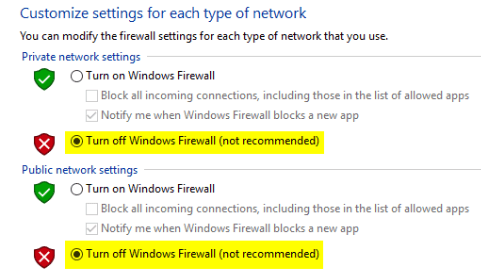
- Save the changes and temporarily disable any other security software installed.
Method 5: Run QuickBooks and Web Connector as Administrator
- Right-click on the QuickBooks Desktop icon and select “Run as administrator.”
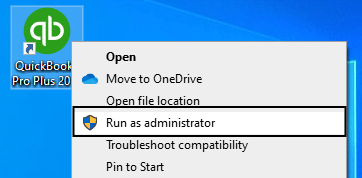
- Repeat the same step for the QuickBooks Web Connector icon.
- Confirm any prompts asking for administrator privileges.
Method 6: Repair QuickBooks Installation
- Close all running applications, including QuickBooks and the Web Connector.
- Open the control panel on your computer.
- Navigate to “Programs and Features” (or “Add or Remove Programs”).
- Locate QuickBooks in the installed programs list, right-click, and select “Repair.”

- Follow the on-screen instructions to complete the repair process.
- Restart your computer after the repair is finished.
Rename the QWCLOG.TXT File to Fix QBWC1085
In many cases, QuickBooks Web Connector Error QBWC1085 occurs because the QWCLOG.TXT file becomes corrupted or inaccessible.
Follow these steps to recreate the log file:
- Close QuickBooks Desktop and Web Connector
- Open File Explorer
- Navigate to:
C:\ProgramData\Intuit\QBWebConnector\log - Locate the file named
QWCLOG.TXT - Rename it to
QWCLOGOLD.TXT - Restart QuickBooks Web Connector
Once restarted, QuickBooks automatically creates a new log file, which may resolve the QBWC1085 error.
Conclusion
QuickBooks Web Connector Error QBWC 1085 can be a frustrating obstacle when using QuickBooks Web Connector. However, by following the troubleshooting methods outlined above, you can resolve the issue and restore the seamless data exchange between QuickBooks and the connected applications. If the issue continues after performing these troubleshooting steps, advanced QuickBooks Web Connector diagnostics may be required to identify deeper synchronization or configuration issues.
About the Author
This article was prepared by a QuickBooks troubleshooting specialist experienced in resolving Web Connector, synchronization, and QuickBooks Desktop integration issues.
Frequently Asked Questions
What causes QuickBooks Web Connector Error QBWC1085?
QBWC1085 is usually caused by corrupted log files, outdated Web Connector versions, firewall restrictions, or synchronization issues.
Can QuickBooks Tool Hub fix QBWC1085?
QuickBooks Tool Hub may help resolve related QuickBooks installation and program issues, but QBWC1085 often requires Web Connector troubleshooting.
Why does QBWC1085 prevent synchronization?
The error interrupts communication between QuickBooks Desktop and connected third-party applications, preventing data exchange.
Can updating QuickBooks fix QBWC1085?
Yes, updating QuickBooks Desktop and the QuickBooks Web Connector can often resolve compatibility-related issues.
Is QBWC1085 related to firewall settings?
Yes, firewall or security software can block Web Connector access and trigger QBWC1085 errors.