

Is QuickBooks Error 2727 stopping your QuickBooks from installing or updating? This error can be frustrating and may stop your work completely. It usually happens when there is a problem with installation files, a faulty MSI table entry, or damaged system files in Microsoft Windows. When this error appears, QuickBooks may fail to install or update properly.
The good news is that you can fix QuickBooks Error 2727 with a few simple steps. In this guide, you will learn easy solutions like running the QuickBooks Install Diagnostic Tool from the QuickBooks Tool Hub, running the installer as an administrator, and performing a clean install in Windows Safe Mode to fix the problem and make QuickBooks work again.
Table of Contents
What is QuickBooks Desktop Error 2727?
QuickBooks Error 2727 is an installation error in QuickBooks Desktop. It occurs when QuickBooks cannot locate or use some important program components during installation or updates.
This issue usually occurs when QuickBooks installation files, Windows Registry entries, or Microsoft Windows system components are missing, damaged, or blocked.
Because of this error, QuickBooks may not install, may fail to update, or may not open after installation. Sometimes Windows security settings, firewall rules, or antivirus programs may also block the installation process.
It is important to note that Error 2727 is related to installation issues, not company file corruption.

Symptoms of QuickBooks Error 2727
- Error message popup: “Error 2727: The directory entry [2]’ does not exist in the Directory table.”
- QuickBooks installation fails or stops before completion.
- Problems uninstalling an older version of QuickBooks.
- QuickBooks update failures showing error 2727.
- Windows installer errors when installing programs.
- QuickBooks may crash or close unexpectedly.
- System performance becomes slow while opening QuickBooks.
- The active QuickBooks window may freeze or stop responding.
Common Causes of QuickBooks Error 2727
- Corrupted QuickBooks installation files.
- Interrupted or incomplete QuickBooks installation.
- Invalid or damaged Windows Registry entries.
- Incorrect file path configuration.
- Damaged Microsoft .NET Framework components.
- Conflicts with antivirus or third-party applications.
- Missing administrator permissions.
- Incorrect installer directory configuration.
Troubleshooting Steps to Resolve QuickBooks Error 2727
1. Restart Your Computer
A simple reboot can fix temporary installer errors.
- Save your work and close QuickBooks.
- Click the Start menu.
- Select the Power icon.
- Click Restart.
- Open QuickBooks after the restart and check the error.
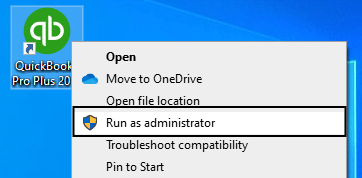
2. Run QuickBooks as Administrator
- Close QuickBooks.
- Right-click the QuickBooks Desktop icon.
- Select Run as Administrator.
- Check if the error is resolved.
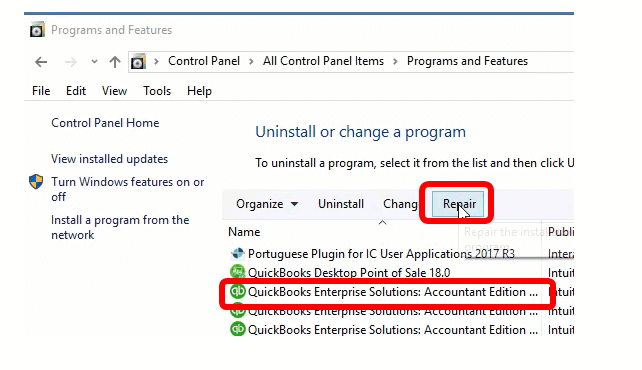
3. Repair the QuickBooks Installation
- Close QuickBooks.
- Press Windows + R.
- Type Control Panel and press Enter.
- Select Programs and Features.
- Find QuickBooks in the list.
- Click Uninstall/Change.
- Select Repair and follow the instructions.
- Restart your computer after repair.
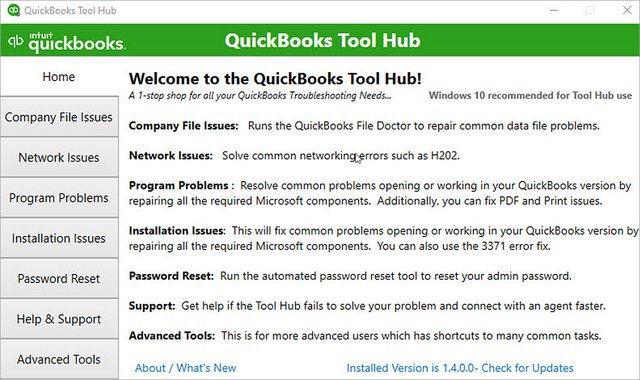
4. Use QuickBooks Tool Hub
- Close QuickBooks.
- Download the QuickBooks Tool Hub.
- Install and open the tool.
- Select the troubleshooting tools available.
5. Run the QuickBooks Install Diagnostic Tool
- Open QuickBooks Tool Hub.
- Select Installation Issues.
- Click QuickBooks Install Diagnostic Tool.
- Allow the tool to scan and repair Windows components.
- Restart your computer.
6. Verify System Date and Time
- Right-click the date and time on the taskbar.
- Select Adjust Date/Time.
- Set the correct time and time zone.
- Restart QuickBooks.
7. Rename the QBWebConnector Folder
- Close QuickBooks.
- Open File Explorer.
- Go to: C:\ProgramData\Intuit
- Find the folder named QBWebConnector.
- Rename it to QBWebConnector.old.
- Restart your computer.
8. Re-register QuickBooks DLL Files
- Press Windows + R.
- Type cmd and press Enter.
- Run the following commands:
regsvr32 /u IEProxy.dll
regsvr32 IEProxy.dll
Restart your computer after running the commands.
9. Uninstall and Reinstall QuickBooks
- Open Control Panel.
- Click Programs and Features.
- Select QuickBooks Desktop.
- Click Uninstall.
- Restart your computer.
- Install QuickBooks again.
10. Use Windows Installer Cleanup Utility
- Download the Windows Installer Cleanup Utility.
- Install and run the tool.
- Select QuickBooks from the list.
- Click Remove.
- Restart your computer.
- Reinstall QuickBooks.
Conclusion
QuickBooks Error 2727 usually occurs due to installation problems, corrupted system files, or incorrect Windows settings. This error can prevent QuickBooks from installing, updating, or opening correctly.
By following the solutions in this guide—such as running QuickBooks as administrator, repairing the installation, using the QuickBooks Tool Hub, or reinstalling the program—you can fix the error and restore normal QuickBooks functionality.
If the problem continues, you should contact QuickBooks support for professional assistance at 1-888-538-1314.
Frequently Asked Questions
What does QuickBooks Error 2727 mean?
QuickBooks Error 2727 is an installation error that occurs when QuickBooks cannot find required directory entries or system files during installation or updates.
Can antivirus software cause QuickBooks Error 2727?
Yes. Sometimes antivirus or firewall software blocks QuickBooks installation files, which can trigger Error 2727.
Does QuickBooks Error 2727 damage company files?
No. This error is related to installation issues and does not affect QuickBooks company files.
What tool fixes QuickBooks installation errors?
The QuickBooks Install Diagnostic Tool inside the QuickBooks Tool Hub can automatically repair many installation problems.
