When it comes to accounting software, Intuit QuickBooks is one of the most trusted solutions for small and medium-sized businesses. Over the years, it has built a strong reputation by offering reliable accounting features and user-friendly tools.
One such powerful utility is the QuickBooks Tool Hub — a centralized solution designed to diagnose and fix common QuickBooks Desktop errors efficiently.
In this guide, you will learn:
- What QuickBooks Tool Hub is
- How to download and install it
- System requirements
- Tools included in Tool Hub
- How to fix common QuickBooks errors
Here in this article, we will help you learn the QuickBooks Tool Hub, where to Download QuickBooks Tool Hub, How to install it, and How to eliminate common errors.
What is Intuit Tool Hub Program?
QuickBooks Tool Hub is your one-stop shop for resolving any issues that you might be facing with your QuickBooks software. Think of it as a virtual toolbox that is packed with a variety of powerful tools and utilities to help you keep your QuickBooks running smoothly. Whether you’re dealing with common file-related issues, performance problems, or other technical difficulties, the Tool Hub has you covered.
Minimum System Requirements for QuickBooks Tool Hub
Before installing, ensure your system meets the following requirements
Operating System:
Windows 10 (64-bit), Windows 8.1 (64-bit), or Windows 7 SP1 (64-bit
Processor:
Minimum 2.4 GHz
RAM:
At least 4 GB (8 GB recommended)
Disk Space:
Around 1 GB
Display:
1024 x 768 resolution or higher
Internet:
Required for download and updates
.NET Framework:
Version 4.7 or later
⚠️ Important Note:
QuickBooks Tool Hub is not compatible with macOS. Mac users may resort to a Windows emulator or dual-boot setup for operation. These are only the minimum requirements, and for improved performance, a higher specification machine is recommended. Furthermore, ensure your system aligns with the minimum requirements of the specific QuickBooks version you’re using.ooks Tool Hub is only available for Windows and is not compatible with macOS.
Expert Review of QuickBooks Tool Hub
Based on practical troubleshooting experience with QuickBooks Desktop errors, the Tool Hub proves to be a highly useful utility.
✔ Easy-to-use interface
✔ Organized troubleshooting tools
✔ Effective for common errors
The File Doctor tool is particularly helpful for repairing company file issues and network-related errors.
👉 Overall, QuickBooks Tool Hub is an essential utility for QuickBooks users who want to resolve errors without advanced technical knowledge.

Tools Available in QuickBooks Tool Hub
QuickBooks Tool Hub includes several built-in tools designed to fix specific issues:
Quick Fix My File
Helps resolve common company file errors such as:
- Error 6150
- Error 6000 series
- Error 6147
It scans QuickBooks services like qbw.exe and repairs minor file issues.
🔹 QuickBooks File Doctor
A powerful tool used to:
- Repair corrupted company files
- Fix network connectivity issues
🔹 Quick Fix My Program
Fixes common program-related issues such as:
- Error 1603
- Error 1712
- Error 1723
Install Diagnostic Tool
Used to fix installation errors like:
- Error 1904
- Error 1603
- Error 80070057
Password Reset Tool
Helps reset QuickBooks admin passwords for supported versions (2021, 2022, 2023).
3371 Error Fix
Specifically designed to fix:
- QuickBooks Error 3371 (license initialization issue)
Quick Fix My File
Helps resolve common company file errors such as:
- Error 6150
- Error 6000 series
- Error 6147
It scans QuickBooks services like qbw.exe and repairs minor file issues.
QuickBooks File Doctor
A powerful tool used to:
- Repair corrupted company files
- Fix network connectivity issues
Quick Fix My Program
Fixes common program-related issues such as:
- Error 1603
- Error 1712
- Error 1723
Install Diagnostic Tool
Used to fix installation errors like:
- Error 1904
- Error 1603
- Error 80070057
Password Reset Tool
Helps reset QuickBooks admin passwords for supported versions (2021, 2022, 2023).
3371 Error Fix
Specifically designed to fix:
- QuickBooks Error 3371 (license initialization issue)
Quick Fix My File
Helps resolve common company file errors such as:
- Error 6150
- Error 6000 series
- Error 6147
It scans QuickBooks services like qbw.exe and repairs minor file issues.
QuickBooks File Doctor
A powerful tool used to:
- Repair corrupted company files
- Fix network connectivity issues
Quick Fix My Program
Fixes common program-related issues such as:
- Error 1603
- Error 1712
- Error 1723
Install Diagnostic Tool
Used to fix installation errors like:
- Error 1904
- Error 1603
- Error 80070057
Password Reset Tool
Helps reset QuickBooks admin passwords for supported versions (2021, 2022, 2023).
3371 Error Fix
Specifically designed to fix:
- QuickBooks Error 3371 (license initialization issue)
Install Diagnostic Tool
This Diagnostic Tool is meant to surmount QuickBooks Error 1904,1903, 1603, 1612, 1712, 1723, and 80070057 while installing/uninstalling QuickBooks. To Access QB Install Diagnostic program, You have to select the installation issues tab in the Home Screen of Tool Hub.
3371 Error Fix
Have you ever ended up with QuickBooks Error Code 3371: Could not initialize license properties? If so, then you can use the most renowned utility to fix error 3371 effortlessly. Fix Error 3371 tool resides under the installation issues tab in the tool hub program.
Guide on Install/Download QuickBooks Tool Hub 2021, 2022, 2023,2026
-
- To Download the latest QuickBooksToolHub.exe 2023 file, click on the below download button.
-
- Once the File QuickBooksToolHub.exe is downloaded, go to the Download Folder and Double Click on the [QuickBooksToolhub.exe] file to start the installation.
-
- Click on “Yes” to allow the windows installer to install the Foreign program.
-
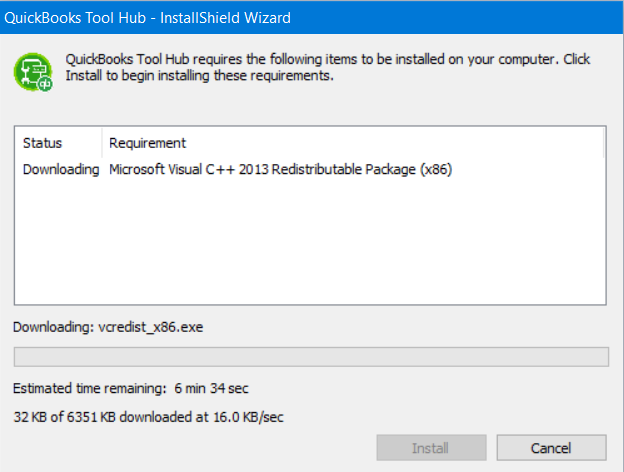
- Next, Click on the “install” button to install the prerequisite components to run QuickBooks Tool Hub impeccably.
-
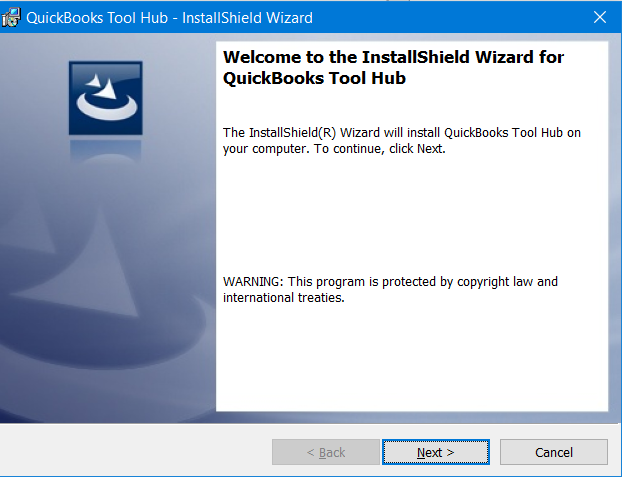
- Click on the “Next” button when the QuickBooks installation wizard window appears.
-
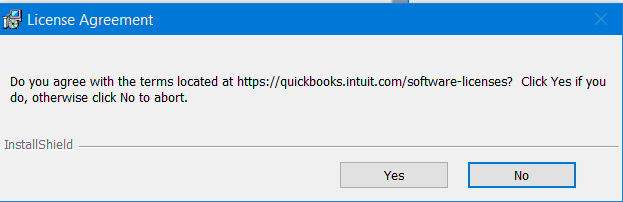
- Click on “Yes” when you see the tool hub license agreement prompt.
-
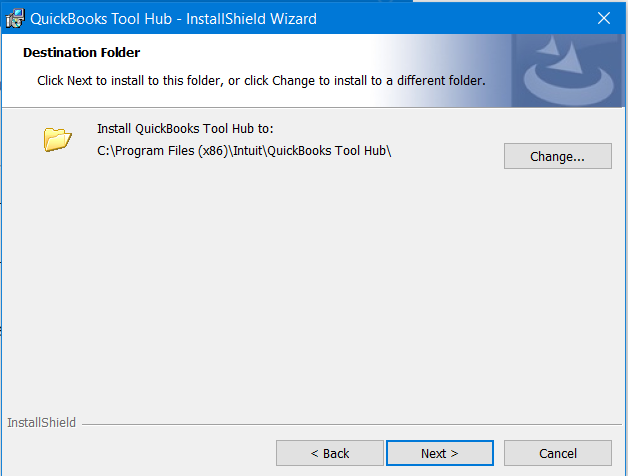
- Click on “Next”, If you don’t want to install the QuickBooks Tool hub in any specific location.
-
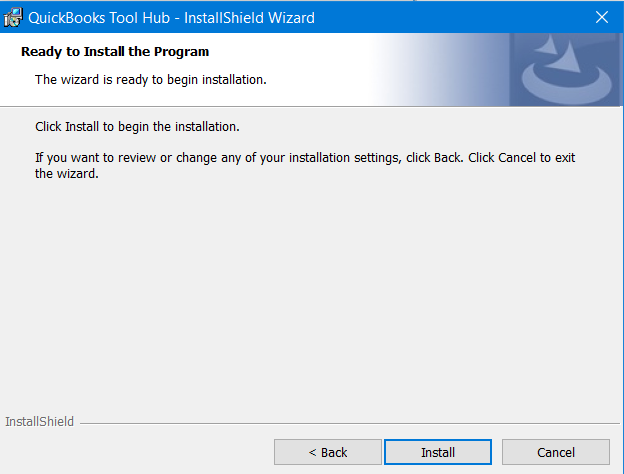
- Click on “Install” to start the installation process of QBTool Hub.
-
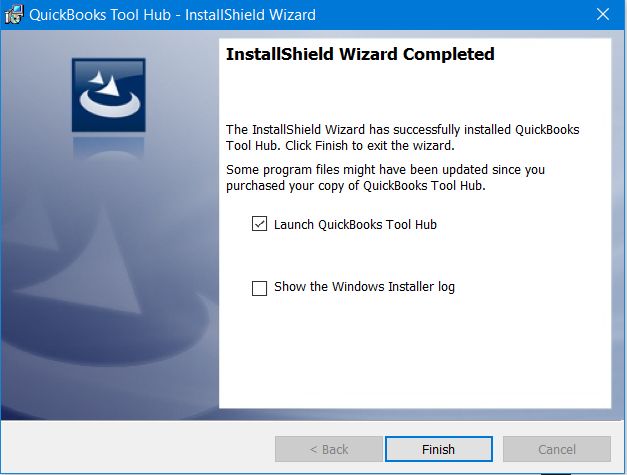
- Click on the “Finish” start Tool Hub.
User Interface of QuickBooks Hub Tool 2023
I am quite assured that none of the users has any issue understanding the QuickBooks Tool Hub User interface.
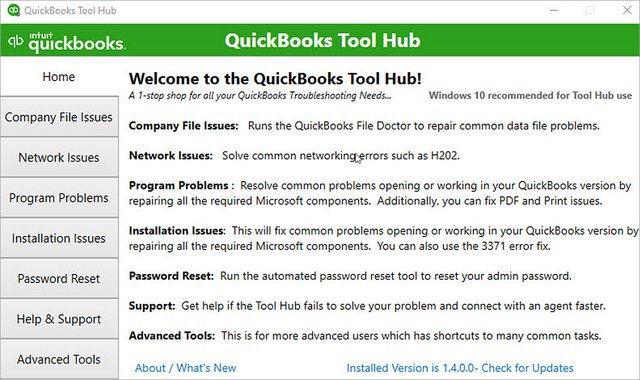
1. Home
When you launch the QuickBooks Tool Hub for the first time, the Home screen greets you with essential programs and information. It is highly recommended to take a moment and read every statement displayed on this home screen. This initial familiarity provides insights into the Tool Hub’s functionality and facilitates its effective usage. The comprehension of these details ensures you’re utilizing the Tool Hub to its fullest potential right from the outset.
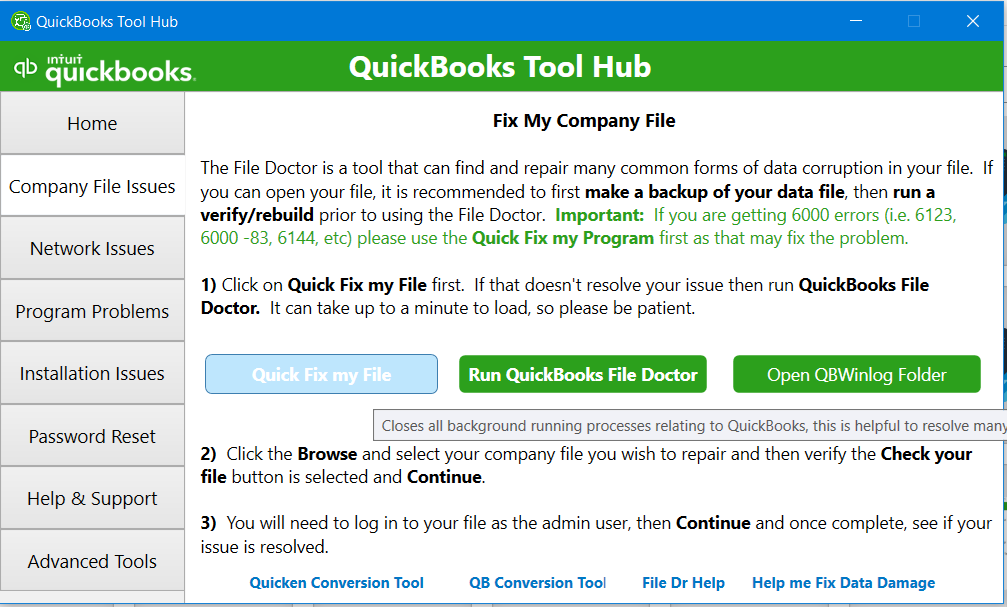
2. Company File issues
The “Company File Issues” button in QuickBooks Tool Hub opens the door to a suite of Intuit utilities, primarily engineered to resolve company file discrepancies. This utility is particularly effective in handling error codes like 6000 77, 6144 82, 6190, 6210, or messages like ‘QuickBooks couldn’t open the company file‘ and HXXX. These issues, occurring frequently, can prevent users from accessing their company files. By leveraging the “Company File Issues” button, users can address and overcome these hurdles, ensuring uninterrupted workflow and data accessibility in QuickBooks.
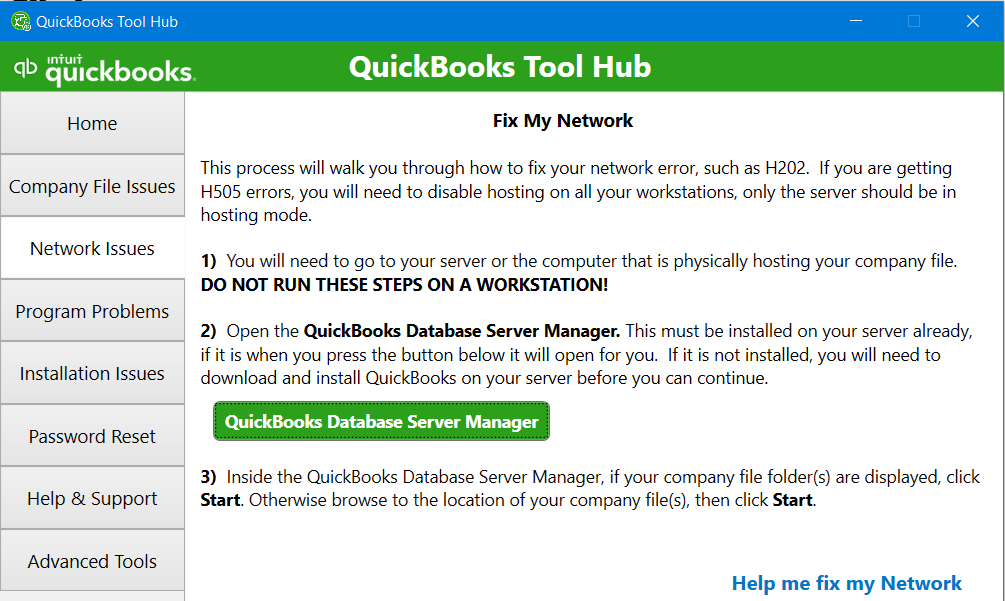
3. Network issues
The “Network Issues” button in QuickBooks Tool Hub is a crucial tool designed to dispel discrepancies resulting from inconsistent network configurations. Users often stumble upon message codes like H505 and H202, indicating a problem with the network connection. By employing the functionality of the “Network Issues” button, users can effectively resolve these errors. This feature makes sure your network configuration aligns with QuickBooks’ requirements, thereby minimizing disruptions and ensuring a smooth operation of your financial tasks.
4. Program Problems
The “Program Problems” Button consists of three tools and all tools are mainly focused to aid the QuickBooks program-related discrepancies.
-
- Quick Fix my program.
-
- QuickBooks Program Diagnostic Tool.
-
- QuickBooks Print and PDF Repair Tool.
5. Installation issues
The “Installation issues” Button primarily helps users to hassle-free perform the install/uninstall of the QuickBooks Desktop program. Set of Tools offered by the Installation issues button are:
-
- QuickBooks Install Diagnostic Tool.
-
- Open QuickBooks Install Folder.
-
- 3371 Error Fix.
-
- Download QuickBooks Desktop.
-
- Check For windows updates.
-
- QuickBooks TLS 1.2 Tool.
6. Advanced Tools
This “Advanced Tools” button is meant only for Windows 10 users, and In this section Tool Hub have contained 14 Shortcuts helpful to directly access certain features. But make sure to always ask a qualified person to perform such a critical operation. And We have listed below all 14 shortcuts.
About This PC
Clicking on this tab will open up the About section of your system where you can see your device’s specifications. It’s essential to know when you install or purchase the software.
Launch Windows Explorer
This shortcut tab will open the file explorer and take you to the Quick Access section.
Change Startup Apps
This tab will directly move you to the ‘startup apps’ where you can set the programs that need to be launched with the start of the system. You can test the apps that are conflicting with QuickBooks by turning them on and off.
Repair Microsoft Office
This tab will open up Microsoft’s article, where you can see some solutions to fix your MS office and its components.
Check For Windows Update
This will directly take you to the update and security center, from where you can update your version of windows or check for the latest updates.
Resolve Performance issues
Click on this tab and next you will get to know how can you improve your system’s capabilities with the help of this article written by intuit for its users.
Download QuickBooks Desktop
This is a secondary option you can use to download the QuickBooks if you do not have it.
SFC scannow
This tool designed by intuit will scan all of the system’s hidden files and replace the corrupted ones with the cached copy of itself.
Internet Properties
It will open up the internet properties settings. You can change the security level of your network, and can also change your SSL certificate.
Uninstall/Change Program
It will launch the apps and features directly for you, and now you can uninstall the QuickBooks previous versions.
Launch Microsoft Troubleshooter
To know what went wrong with your software, you can run these MS troubleshooters.
Windows Advanced Firewall program
Want to set firewall inbound and outbound rules? Hit this advanced firewall tab from the QuickBooks Tool Hub.
Launch Task Manager
Open up the Windows task manager with the help of this tab and end the QuickBooks processes if your QuickBooks Keeps Crashing.
Windows Display Settings
Adjust your display settings with the QuickBooks you are running currently, by clicking on this tab.
Summing up
In this guide, we’ve diligently attempted to address every question related to the QuickBooks Tool Hub program, operating under the assumption that further help might not be necessary. Yet, should any uncertainties or additional questions arise, we warmly invite you to contact us. Our QB Data Service Team stands ready to offer prompt and effective support, ensuring that your experience with our software is both smooth and satisfactory. Remember, no query is too small, and we are here to assist with every aspect of your QuickBooks journey.
Frequently asked questions upon QB Tool Hub
Is QuickBooks Tool Hub Paid Tool?
Where to find QuickBooks Tool Hub, Download Link?
Do I need to require Internet while I am using QB Tool Hub?
Who has developed the QuickBooks Tool Hub?
Can I install QuickBooks Tool Hub 2023 on MAC?
Note that QuickBooks Tool Hub is not compatible with QuickBooks Online. It is only intended for use with QuickBooks Desktop. If you are using QuickBooks Online, you will need to use a different set of tools and utilities to diagnose and fix issues with your account.
Can Tool Hub Fix a Corrupted Company File?
1. Launch QuickBooks Tool Hub.
2. Select the ”File Doctor” tool.
3. Follow the prompts to select the company file that you want to diagnose and repair.
4. The File Doctor will diagnose the file and display any issues that it finds. If it finds any issues, it will offer to fix them.
5. Follow the prompts to fix the issues that the File Doctor identifies.
Note that the File Doctor may not be able to fix all issues with a corrupted company file, and in some cases, it may not be possible to recover the file. If the File Doctor is unable to fix the file or if you are unable to open the file after running the File Doctor, you may need to seek additional help from QuickBooks support or a QuickBooks expert.